
Watching on several devices at once
You can install uPlay on as many devices as you like – your phone, your tablet, the TV in the living room and the box in the kids' room. There is no limit on installations.
But one subscription gives you one simultaneous stream. If someone else in the household wants to watch something different at the same time, you need an extra connection.
What an extra connection is
Technically it is a subscription of its own, but it costs less than a regular one for as long as your main subscription is active.
Each connection adds one simultaneous stream. With one extra connection two people can watch different channels at once, with two connections three people can, and so on.
| Devices you can install on | Unlimited |
| Simultaneous streams per subscription | 1 |
| Maximum connections per account | 5 |
| Cost | 89 kr/mo, 899 kr/yr or 1,799 kr for two years |
| Where to add one | Under Screens at home on My uPlay |
Once you have at least one connection, your subscription is called uPlay+ Family on your account page. It's the same subscription as before – the name just says that several people at home can watch at once.
How to add a connection
- Log in to My uPlay
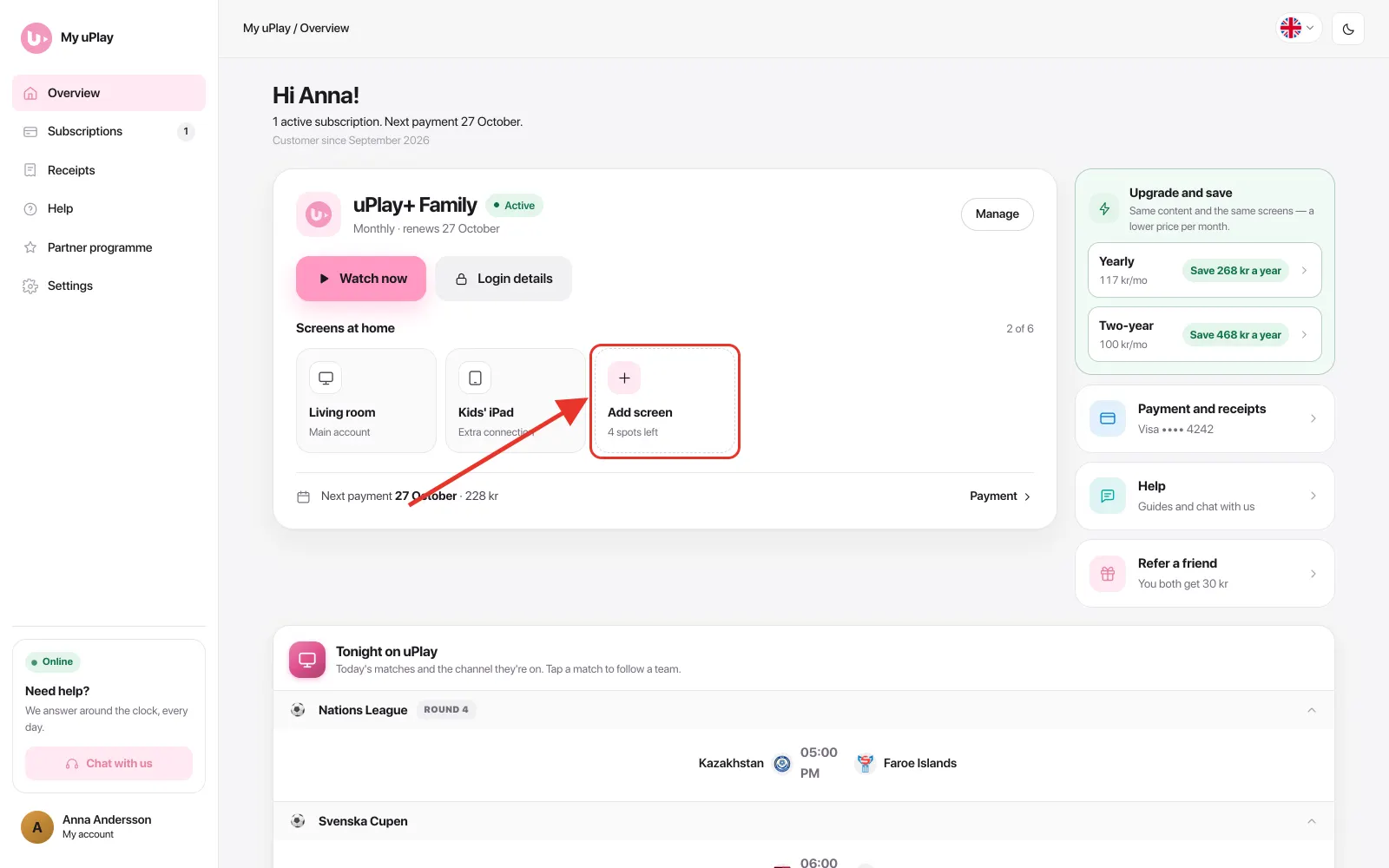
- Tap Add screen under Screens at home on the subscription card
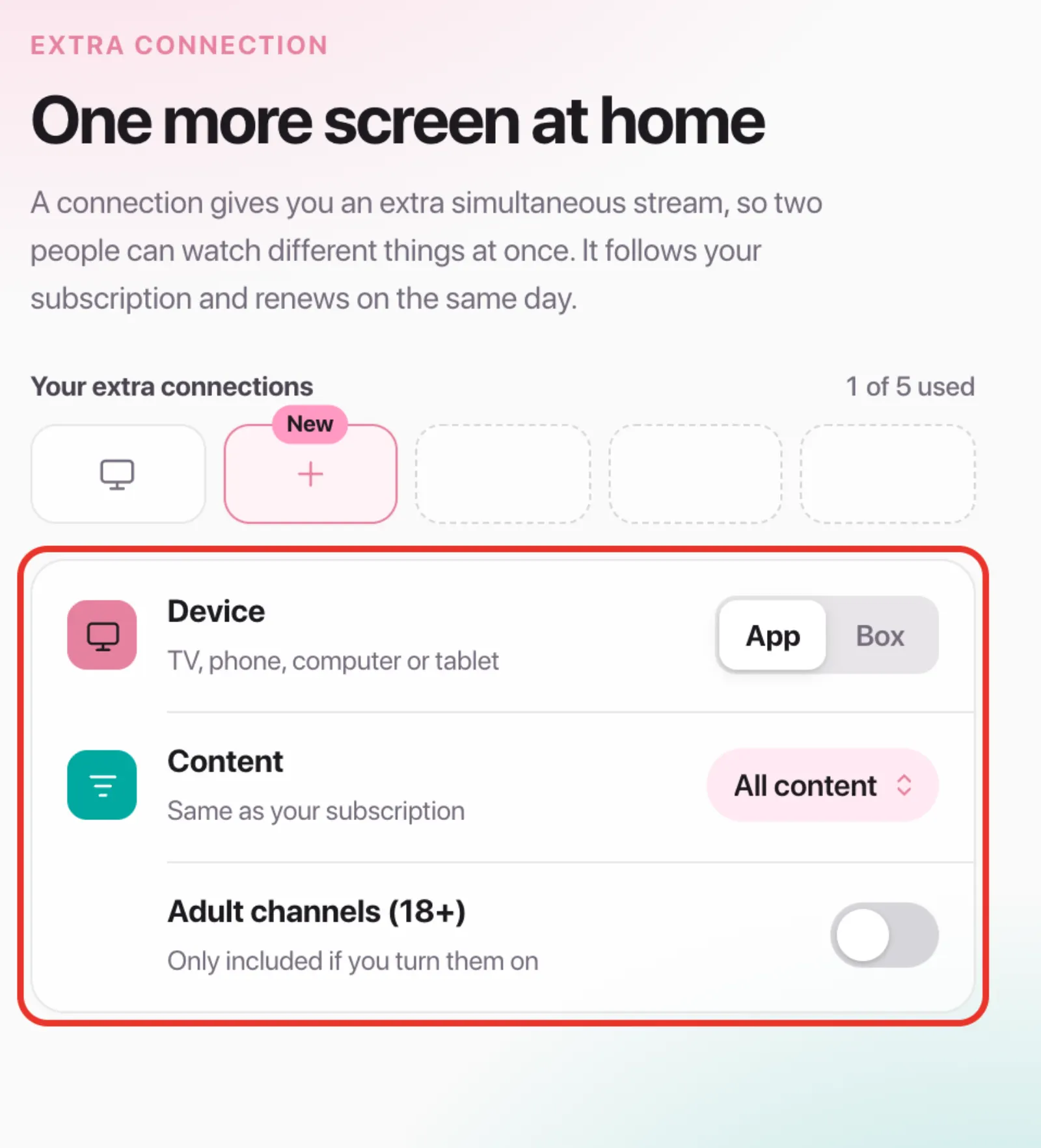
- A box opens. Choose which device the connection is for – an app on TV, phone or computer, or a MAG or TVIP box. The content starts out the same as your subscription's, but you can choose something else for this screen
- On the right of the box you see what you pay now. Pay by card, Apple Pay or Google Pay
- The box shows the connection being created, and when it's ready the new login details are right there
You only pay until your next regular payment. After that the connection renews together with your subscription, on the same day and the same receipt.
The connection has login details of its own: its own server address, username and password. They're always behind Login details on the subscription card, under a tab of their own for the screen – see Find your login credentials. Enter them on the device that should be able to watch at the same time.
Give your screens their own names
Your subscription and each connection start out as Screen 1, Screen 2 and so on. Name them after where they are, so you know straight away which details belong to which TV when one of them needs setting up again.
- Log in to My uPlay
- Tap the screen you want to name under Screens at home
- Type a name, for example Living room or Kids' iPad, pick an icon and tap Save
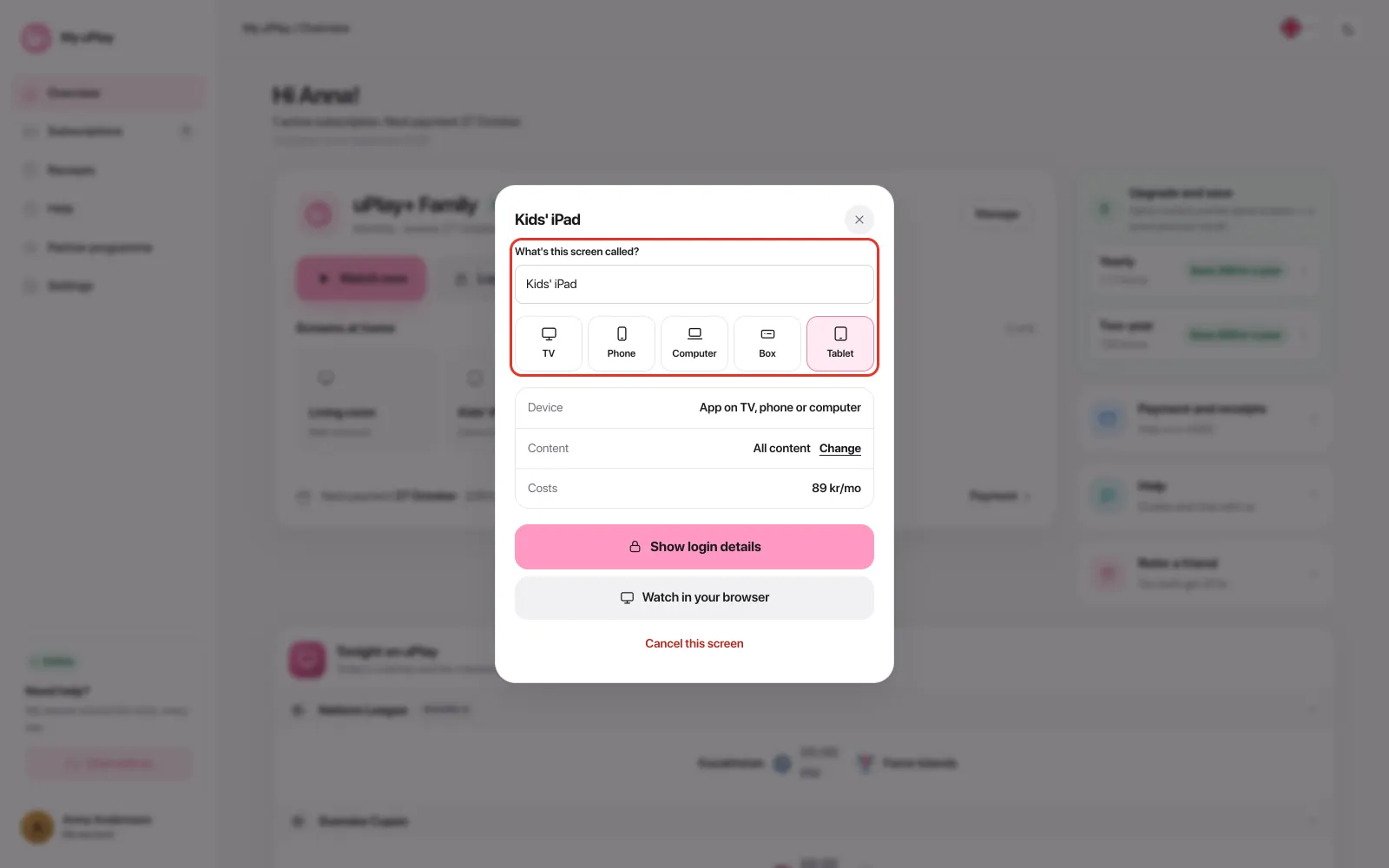
The name is saved to your account, so it looks the same on your phone and your computer. If you'd rather we did it for you, just tell us what the screens should be called when you contact us.
Watch in your browser on every screen
Each connection is an account of its own and can watch on its own – in your browser too, without setting up an app. Tap the screen under Screens at home, then Watch in your browser. Your subscription has the Watch now button right on its card.
The web player is new and marked Experimental. It works with app accounts; a MAG or TVIP box is locked to its box and has no button.
Frequently asked questions
Do I need a connection if we just take turns watching?
No. If you take turns, one subscription is enough no matter how many devices have the app installed. A connection is only needed when you want to watch different things at the same time.
How do I know I need another one?
The stream stops or refuses to start when someone else is already watching on the account. If that keeps happening in your household, a connection is the answer.
How do I know which connection is on which TV?
Give your screens their own names – see above. The name shows on the screen's tile, as a tab in the Login details box and under the Watch in your browser button.
How many can I have?
Up to five connections per account.
Can I cancel just one connection?
Yes. Tap the screen under Screens at home, then Cancel this screen. The subscription and the other screens carry on as usual, and the connection keeps working until the end of its period.
What happens to my connections if I cancel my main subscription?
They're cancelled at the same time and keep working until the end of the period, just like the subscription. The box tells you before you confirm the cancellation. If you undo the cancellation with Resume, the connections come back with it.
Can a connection have a different billing interval from the subscription?
It can have the same interval as your subscription or a shorter one, never a longer one. If you choose the same, it renews on the same day as the subscription, on the same receipt. If you choose a shorter one, it gets a period of its own and renews separately. If you change the subscription's billing interval, the connections follow. The exact amount, in your own currency too, is shown in the box before you pay.
Does a connection only work on the same network?
No, it works anywhere. The connection has login details of its own, under a tab of its own in Login details – enter them on the other device. If both devices use the subscription's details, one of them is stopped, because each set of details gives one stream at a time.
Can I use a connection in another household?
Connections are intended for your own household. If you have a particular situation, get in touch and we will take a look at it.