
Change payment method
You can change the card your subscription is charged to at any time – directly on your account page, without contacting support.
Step-by-step guide to changing your card
Log in to My uPlay
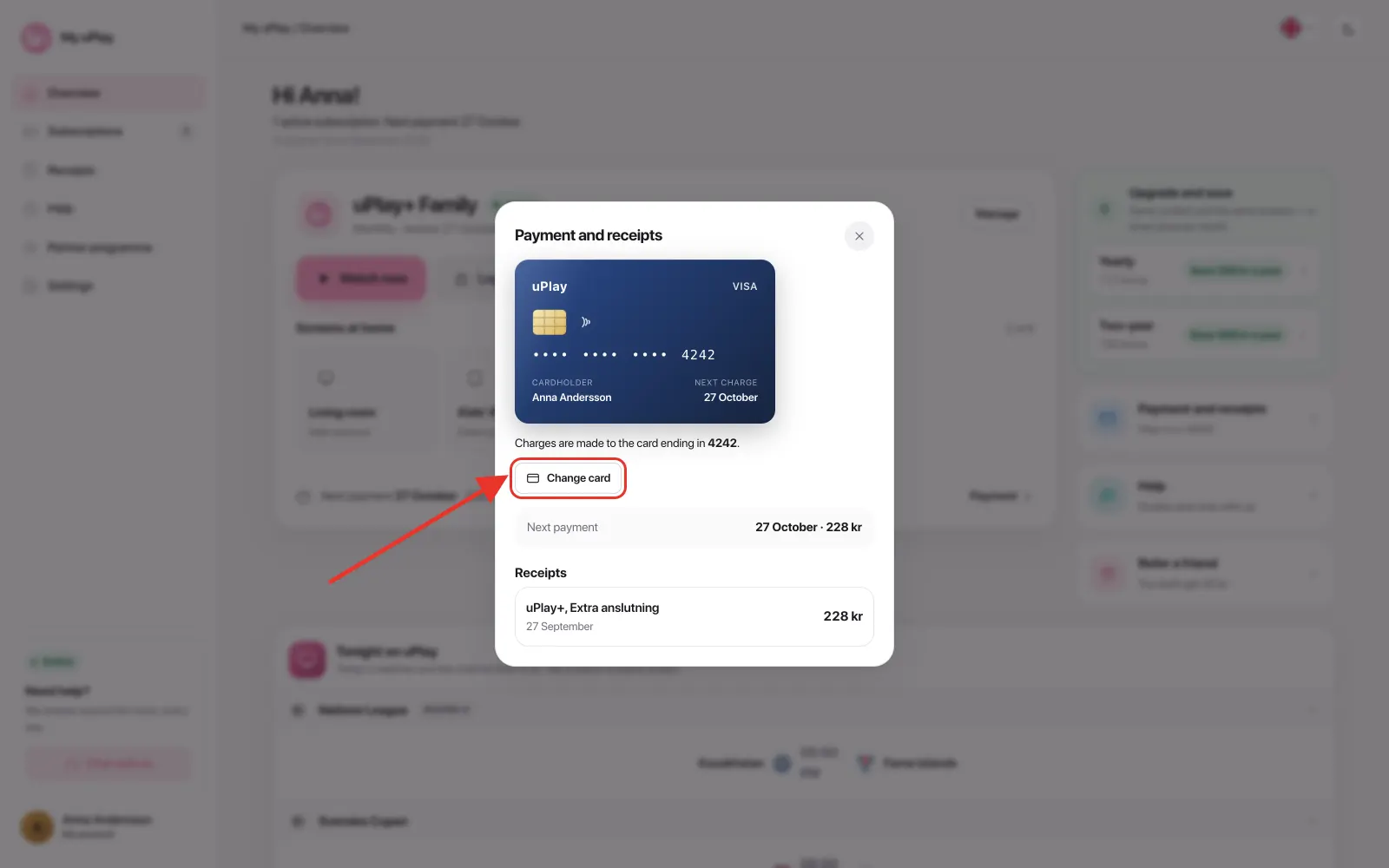
Tap Payment and receipts on Overview – next to the subscription card on a computer, below it on a phone
The box shows the card that charges are made to and the date of the next charge. Tap Change card. If we have no card saved, it says No card saved, and the button is called Add card
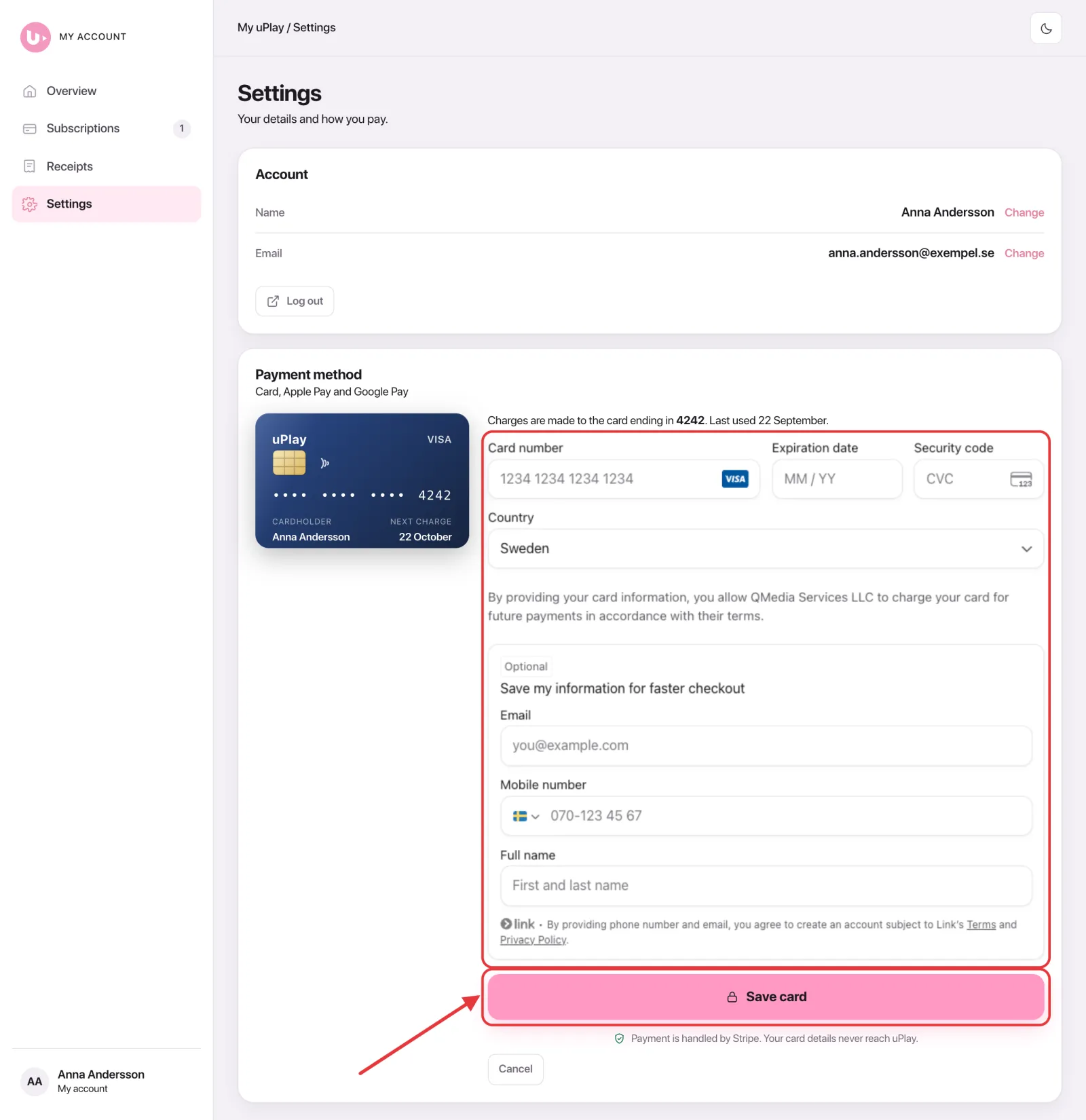
Fill in the new card: card number, expiry date and security code. The fields are shown by Stripe, who handles the payments – your card number never reaches uPlay
Tap Save card. Some banks ask you to confirm the card in the bank's app – do so, and the card is saved
The new card is used from the next charge onwards. Nothing is charged when you save the card.
The same card and the same button are also under Settings → Payment method in the menu.
Good to know
| Question | Answer |
|---|---|
| When is the new card used? | From the next charge – the date is shown in the Payment and receipts box |
| Is anything charged when I change card? | No, the card is only saved |
| Can I change card while my subscription is active? | Yes, at any time |
| Has a payment already failed? | Change card, then tap Pay now on the subscription – see Pay a past-due invoice |
Frequently asked questions
Which card is charged after I change it?
The new card, from the next charge onwards. The old one is no longer used. In the Payment and receipts box you can see the last four digits of the card and when it was last used.
Why does my bank ask me to confirm?
Many banks require you to approve a card in the bank's app (3D Secure) before it can be used for recurring payments. It's your bank asking, not us – approve it in the app and the card is saved.
My card has expired – what do I do?
Switch to the new card under Payment and receipts just as above. If a payment has already failed, tap Pay now on the subscription afterwards and the service continues right away.
Can I pay with Apple Pay or Google Pay?
Yes. If Apple Pay or Google Pay is available on your device, it's shown at checkout when you order, and the card you pay with is saved for future charges.
Need help?
If you run into any problems, our support is available in the chat on My uPlay, 24 hours a day, 7 days a week. See Contact support.