
Pay a past-due subscription payment
If an automatic payment fails, your subscription gets the status Overdue. We automatically try to charge the payment again over the next few days and email you each time – but you don't have to wait. You can pay yourself with one tap on your account page.
Step-by-step payment guide
Log in to My uPlay
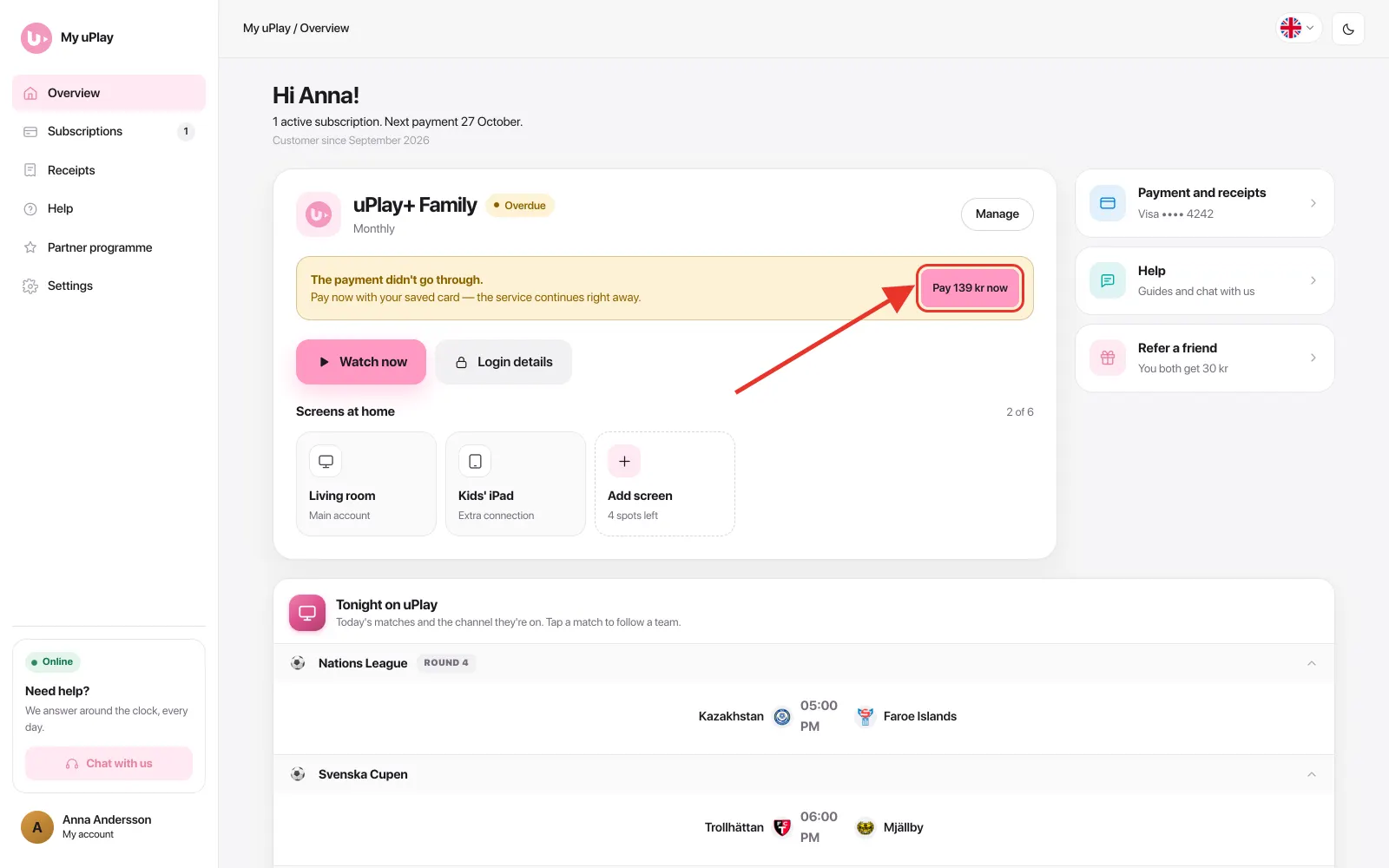
On Overview the subscription has the Overdue badge and a yellow box: The payment didn't go through. Tap the Pay … now button in the box
- The Pay now? box shows the amount that will be charged to your saved card. Tap Yes, pay …
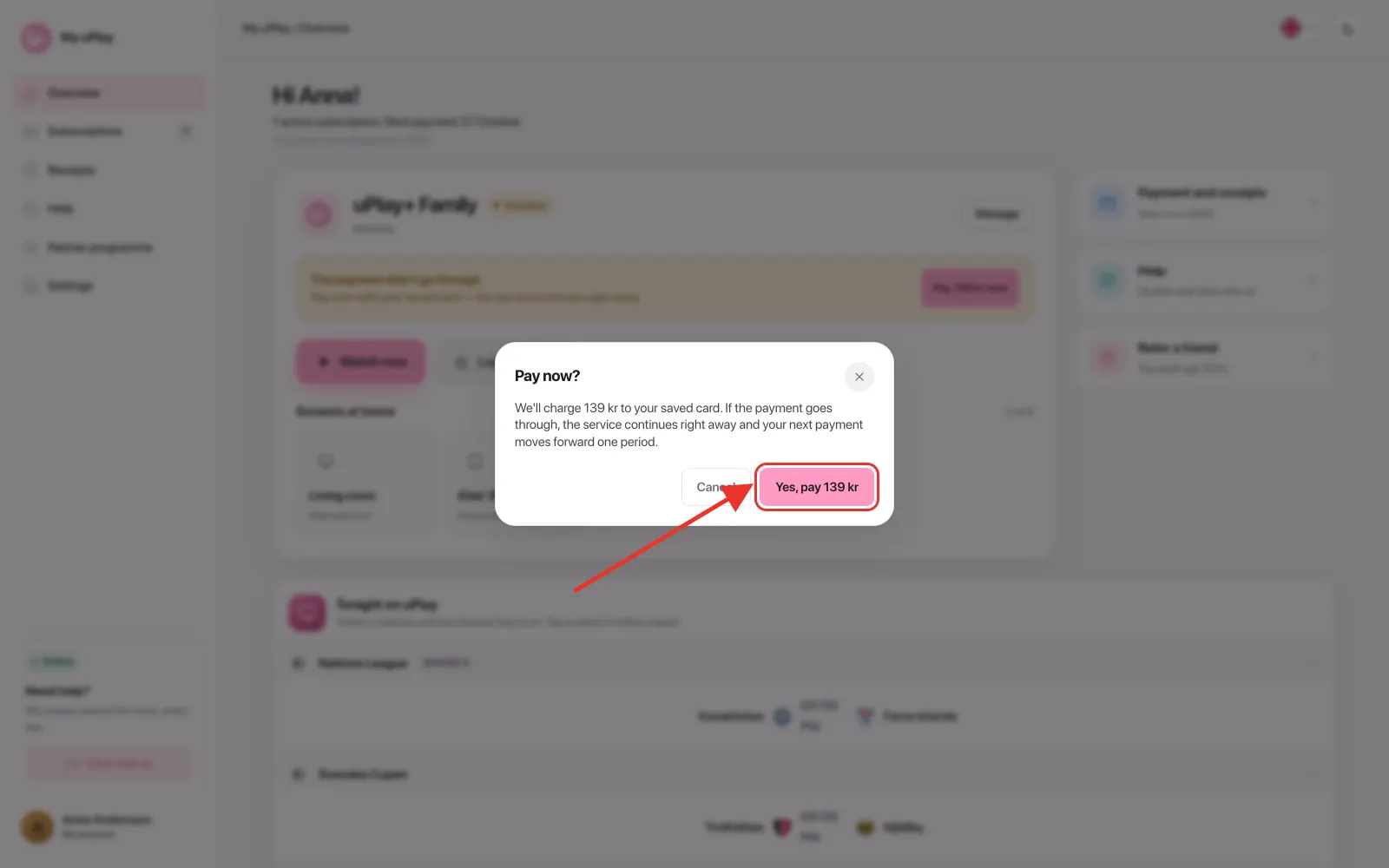
If the payment goes through, the service continues right away and the receipt appears under Receipts on your account page. If the card is declined again, the box tells you – change card under Payment and receipts and try again.
Good to know
| Question | Answer |
|---|---|
| What happens to the service in the meantime? | Your account is only extended once the payment has gone through – pay as soon as you can |
| Which card is charged? | Your saved card, shown under Payment and receipts |
| What if the payment is declined again? | Change card under Payment and receipts and tap Pay now again – see Change payment method |
| Does my renewal date change? | No. The period is counted from the original date, so your charge day stays the same |
| How many times do you retry the charge? | Twice: after two days, and a final time five days later – about a week in all. If your bank requires you to approve the payment yourself, we try after 3, 7 and 11 days, with an email before each attempt |
| What if I don't pay? | If none of the automatic attempts succeed, the subscription ends. You can start it again with Resume on your account page |
| Can I change billing interval while it's Overdue? | Pay first with Pay now, then change the interval afterwards |
Frequently asked questions
Why didn't the payment go through?
Usually because the card has expired, there were insufficient funds, or the bank blocked the charge.
Can I change card before paying?
Yes. Tap Payment and receipts on the overview, then Change card, and save the new card. Then tap Pay now on the subscription – the charge is then made to the new card.
My bank wants me to approve the payment – what do I do?
Some banks require you to approve the charge yourself, and you'll get an email about it. Tap Pay … now on the subscription and then Yes, pay … – your bank asks right away, and you approve in the bank's app. Once it's approved the service continues, and your account page updates within a moment.
How long does it take for the service to work again?
It continues right away once the payment has been approved.
Need help?
If the payment doesn't go through or you have any questions, our support is available in the chat on My uPlay, 24 hours a day, 7 days a week.