
Where do I find my login credentials?
When you set up uPlay in your IPTV app you need three details – a server address, a username and a password. They're called Xtream Codes and are always available on your account page on My uPlay. You never need to contact support to get them.
Step by step
Step 1 – Log in to your account
Go to My uPlay, fill in your email address and tap Send login link. You'll get an email with a link – tap it and you're logged in. The link is valid for 15 minutes and can only be used once.
If you have added Face ID or a fingerprint it is even quicker – see Log in to My uPlay.
Step 2 – Tap Login details
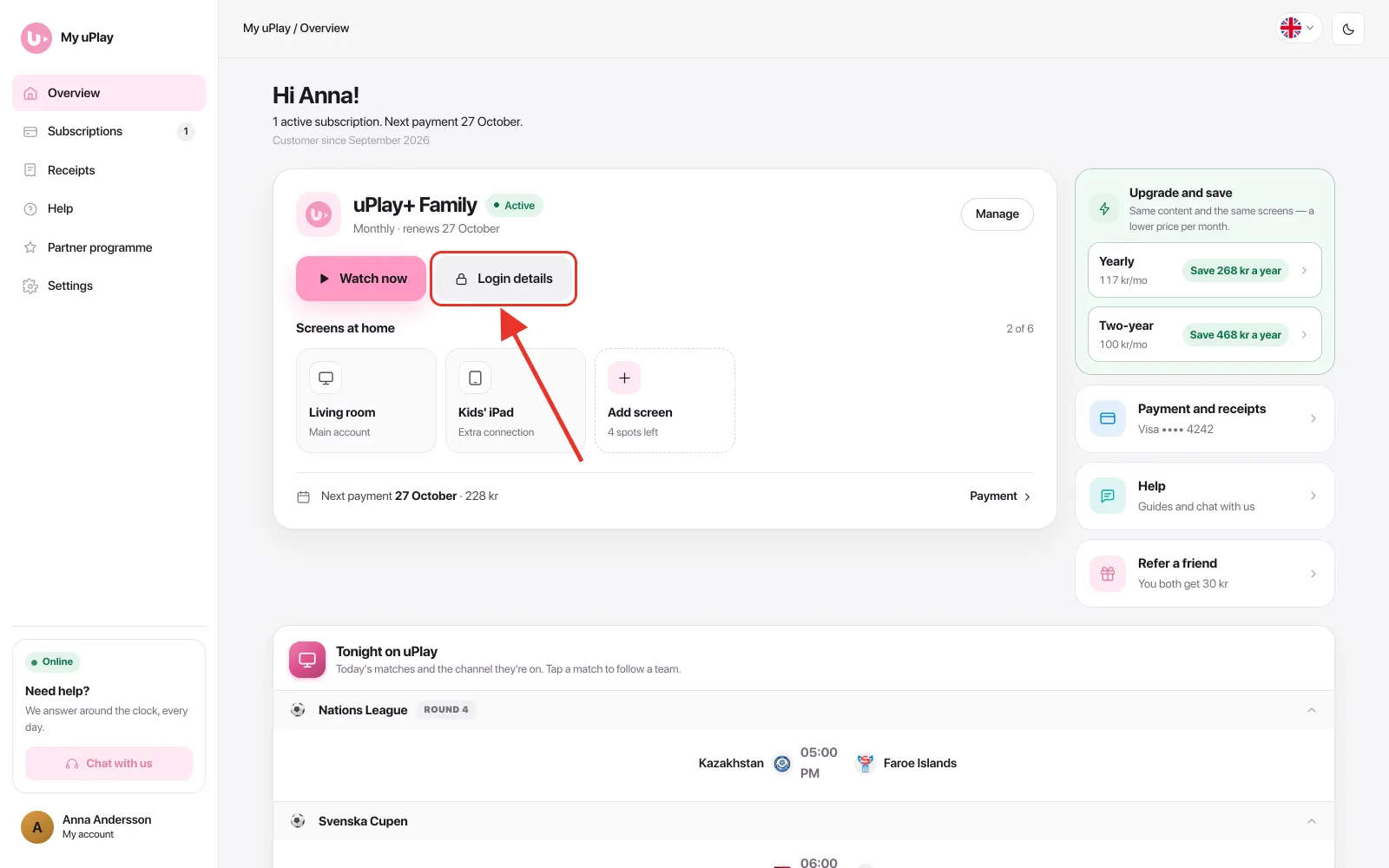
Right on Overview your subscription has its own card. Tap Login details on the card.
A box opens with everything your app asks for, in the order it asks.
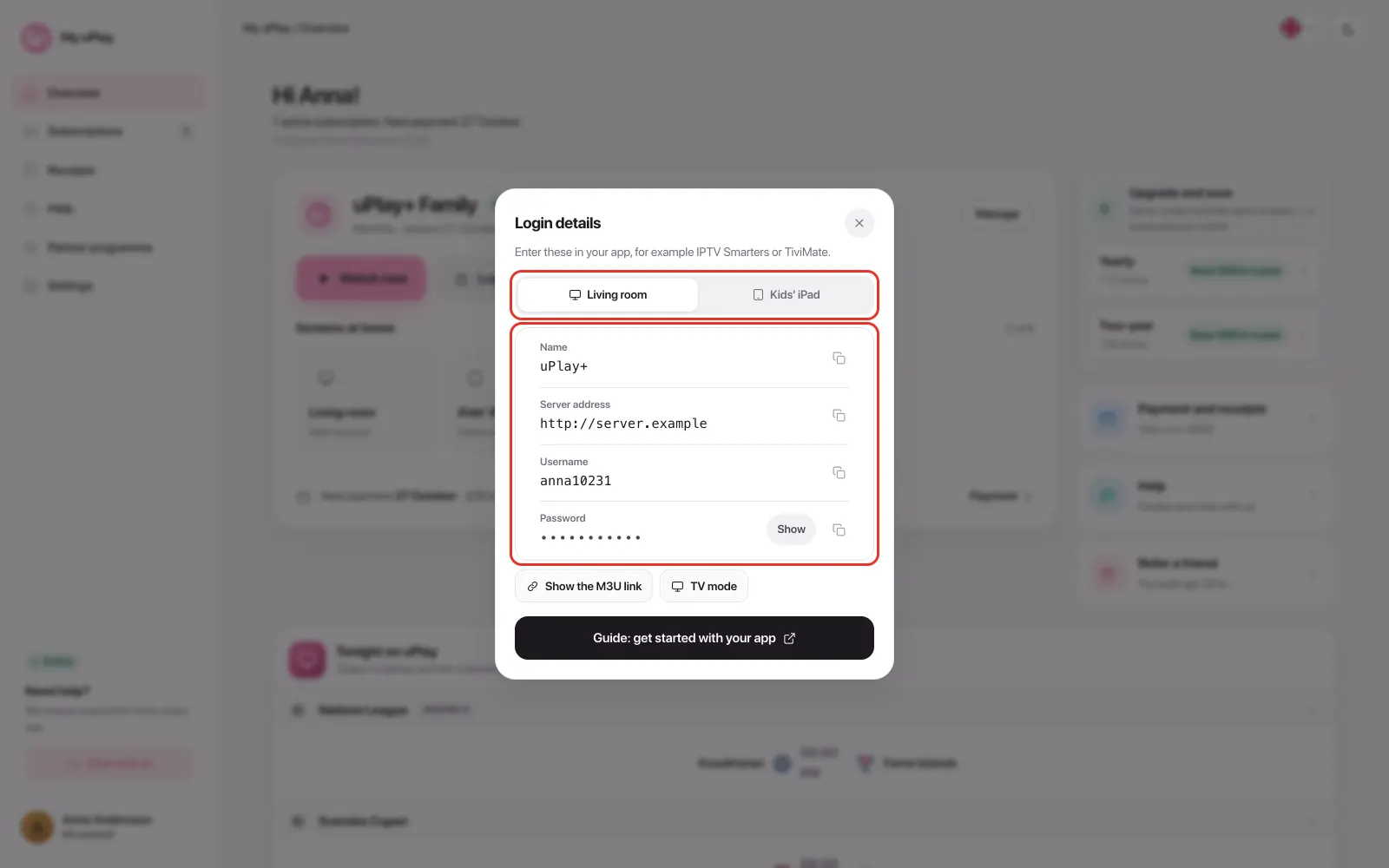
| Field | Description |
|---|---|
| Server address | The address you enter as the server in the app |
| Username | Your unique username |
| Password | Your password – tap Show to see it |
Tap a row to copy the detail. These three are what you enter when you log in to your IPTV app via the Xtream Codes API.
Several screens at home
If you have extra connections, each screen has its own tab at the top of the box – for example Living room and Kids' iPad. Each screen has its own server address, username and password, so pick the tab for the screen you're setting up.
MAG or TVIP box
If you ordered for a MAG or TVIP box, the box shows Portal address and MAC address instead – those are what the box needs. See TVIP.
Where do I find my M3U link?
In the Login details box there is a Show the M3U link button. Tap it to show the full link, and copy it with one tap.
The link looks roughly like this, with your own server address and details filled in:
http://YOUR-SERVER-ADDRESS/get.php?username=YOURUSERNAME&password=YOURPASSWORD&type=m3u_plus&output=tsAlways copy the link from your account page rather than typing it out from here. The server address differs between accounts, and a mistyped address is the most common reason a playlist fails to load.
Xtream Codes is almost always the better choice
M3U does not refresh the channel list automatically, and an app without Xtream Codes support is usually outdated. Only use M3U when your app or box requires it — a TVIP box over MAG, for example.
Where do I enter the credentials in the app?
When you open your IPTV app for the first time, choose Xtream Codes as the connection method and fill in:
| Field in the app | Detail from account page |
|---|---|
| Server / Host / URL | Server address |
| Username | Username |
| Password | Password |
Then tap Connect, Login or Add depending on the app – and your channels load automatically.
Frequently asked questions
I can't find my credentials — what do I do?
Check that you logged in with the same email address you ordered with. You reach the details with the Login details button on the subscription card under Overview. The same card is under Subscriptions in the menu – that's where all your subscriptions are, if you have several.
If the card says your account is being created right now, the details appear within a minute or so. If it says we don't have your box's MAC address, or that we can't find any login details, message us in the chat and we'll sort it out.
My credentials aren't working in the app — what could be wrong?
Check that the server address, username and password came through correctly, with no extra spaces. The easiest way is to copy them from your account page – tap the row and the detail is copied. Try typing them in by hand if it still doesn't work.
I resubscribed after my subscription expired — do my old credentials still work?
No. A new subscription always comes with new credentials. The server address, username and password are all new, and the old ones stop working.
You get them in the confirmation email straight after the purchase, and they are also on your account page behind the Login details button. In your IPTV app you therefore need to replace the old details with the new ones — in most apps that means adding a new playlist or user and removing the old one.
Will I be told if the server address changes?
Yes. If we move your line, you get the email New server address for your uPlay with the old and the new address – even if you have turned off news and offers. Your username and password stay the same. We also post it in the information channel on Element X. The address that applies is always under Login details. How to change the address in your app: see Getting started.
Can I use the same credentials in multiple apps?
Yes. Your Xtream credentials work in any IPTV app that supports the Xtream Codes API — TiviMate, UHF, IBO Player and more. You can log in on an unlimited number of devices but only stream on one at a time per subscription.
Where do I find my M3U link?
Tap Login details on your account page and then Show the M3U link. It's built from your Xtream credentials and looks something like this: http://[server address]/get.php?username=[username]&password=[password]&type=m3u
Log in at My uPlay and copy the link from there rather than building it manually.
Summary
- Log in at My uPlay with your email address
- Tap Login details on the subscription card under Overview – if you have several screens, pick the right tab
- Tap a row to copy the server address, username and password
- Enter the details in your IPTV app under Xtream Codes API
Need help setting up a specific app? See our guides for TiviMate, UHF, Ibo Player, SET IPTV and more in the left menu.