
How do I log in to my uPlay account?
You sign in at My uPlay, and there are two ways in:
| Method | What you need | Good to know |
|---|---|---|
| Link in your email | Your email address | Works everywhere, on every device |
| Face ID, Touch ID or fingerprint | A key you added in advance | Fastest – no email involved |
There is no password. We have never had one, and we store none – a password you choose once and forget by the next time is a problem for you, and something that can leak is a problem for both of us.
The link in your email
Step 1 – Enter your email address
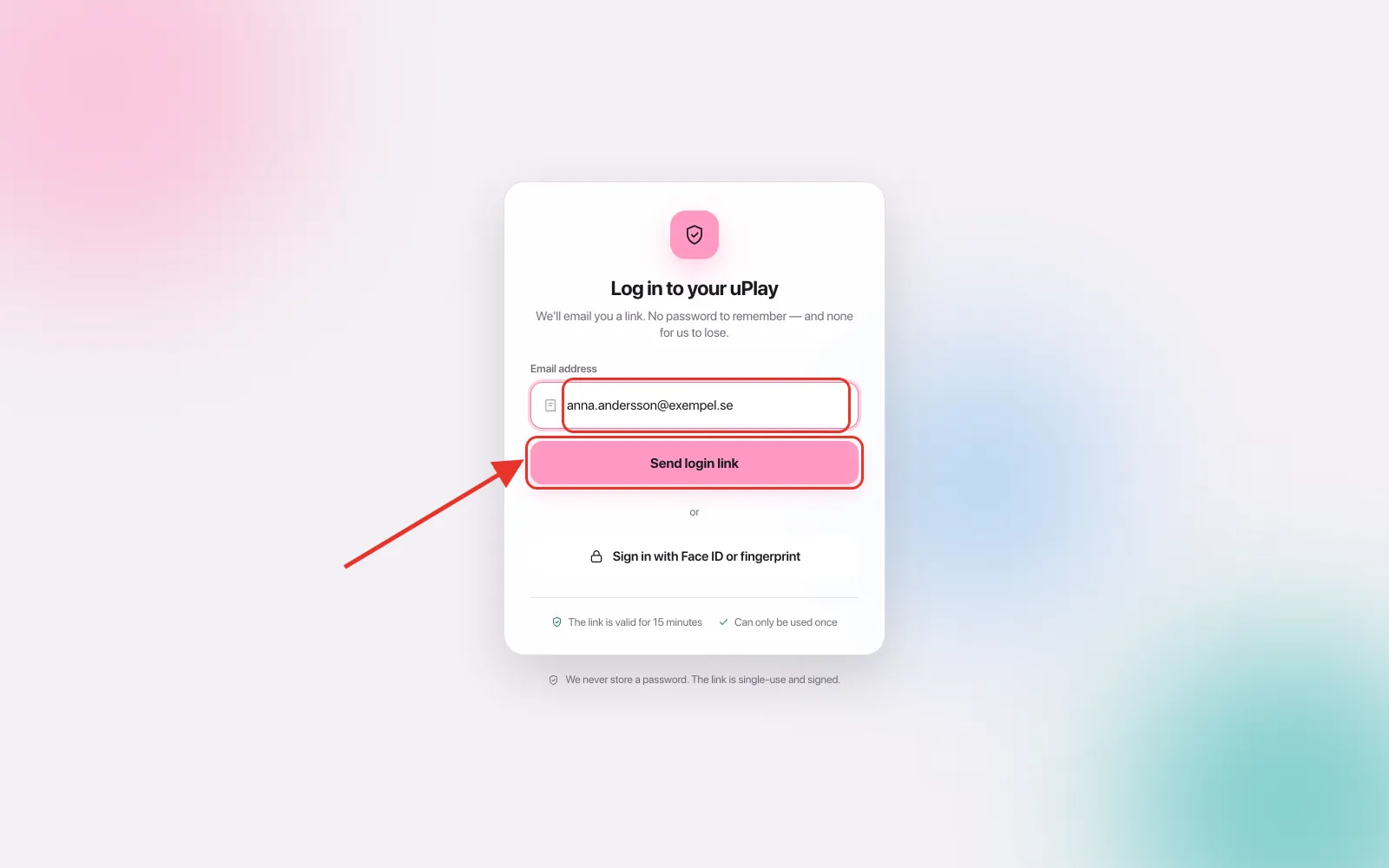
Go to My uPlay and type the address you used when you ordered. Press Send login link.
Step 2 – Press the link in the email
The email arrives within a minute. Press the link in it and you are signed in – nothing else to fill in.
The link is valid for 15 minutes and works once
It stops working once you have used it, and requesting a new one invalidates the old. That is deliberate: a link sitting in your inbox for weeks is a key to your account sitting in your inbox for weeks.
Can't find the email?
Try this, in order:
- Check your junk folder. This is the most common reason.
- Check that the address is right. The link only goes to the address on your order – if you typed it wrong, no email arrives.
- Wait a minute before pressing again. We only send one email per minute to the same address, and at most three per hour. Pressing five times does not give you five emails.
- Message us in the chat. We are here around the clock – see Contact Support.
Face ID, Touch ID and fingerprint
This is called a passkey. Instead of waiting for an email, you identify yourself with your face, your finger or your device code – the same way you unlock your phone.
You must be signed in to add one
That is the whole point of the security: if anyone could add a key to your account, it would be a way straight in. Sign in with the email link first, once, and then add the key while you are inside.
Step 1 – Open Settings
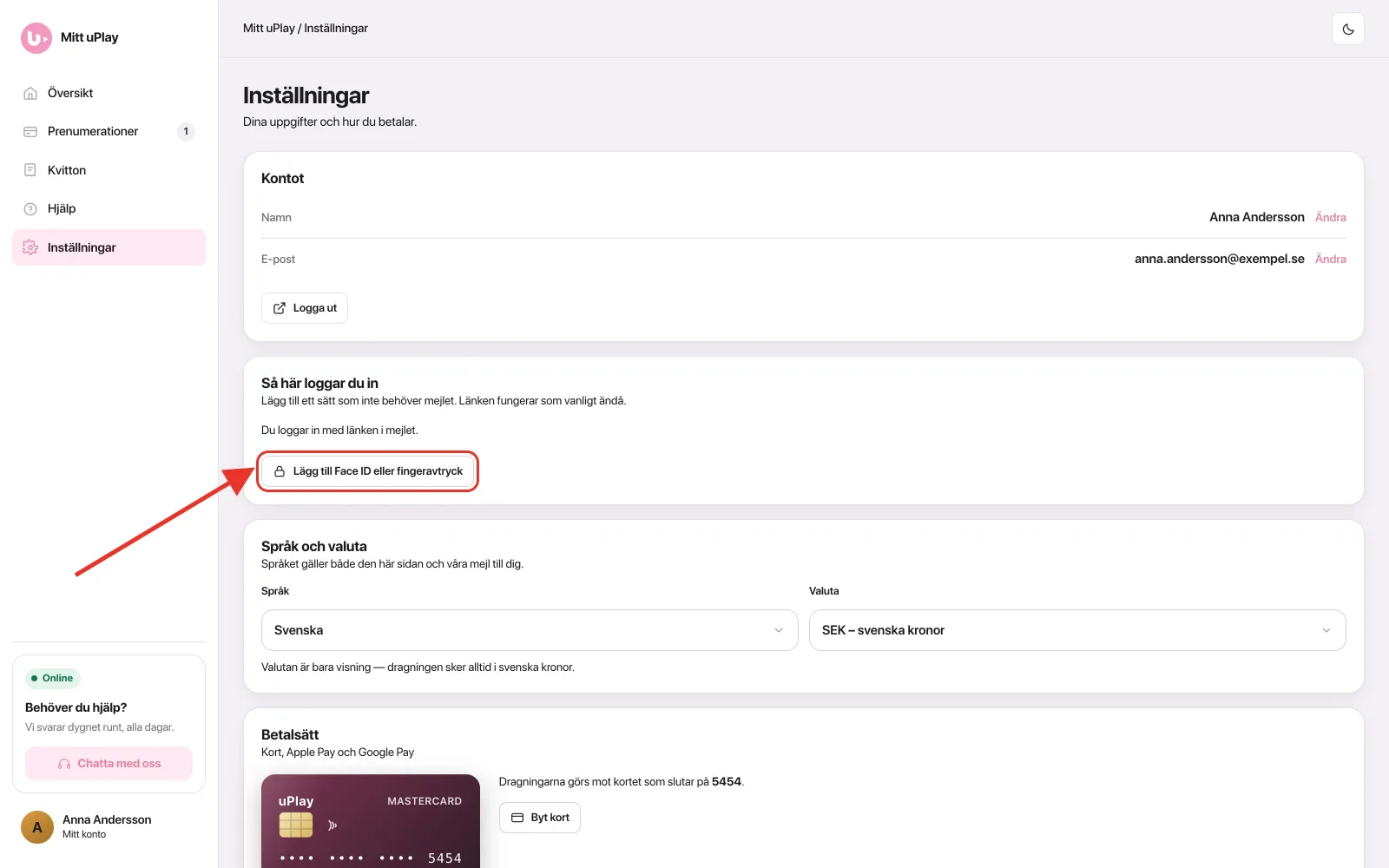
Sign in and go to Settings. Under the heading How you sign in, press Add Face ID or fingerprint.
Step 2 – Identify yourself in your device's own dialog
Your phone, tablet or computer now takes over and shows its own dialog. What it is called depends on the device:
| Device | What you see |
|---|---|
| iPhone, iPad | Face ID or Touch ID |
| Mac | Touch ID, or your Mac password |
| Android | Fingerprint, face or screen lock |
| Windows | Windows Hello |
Approve with your face, your finger or your code. The dialog belongs to the operating system, not to us – we never see your face, your fingerprint or your code, and we never learn anything about them.
Step 3 – Done
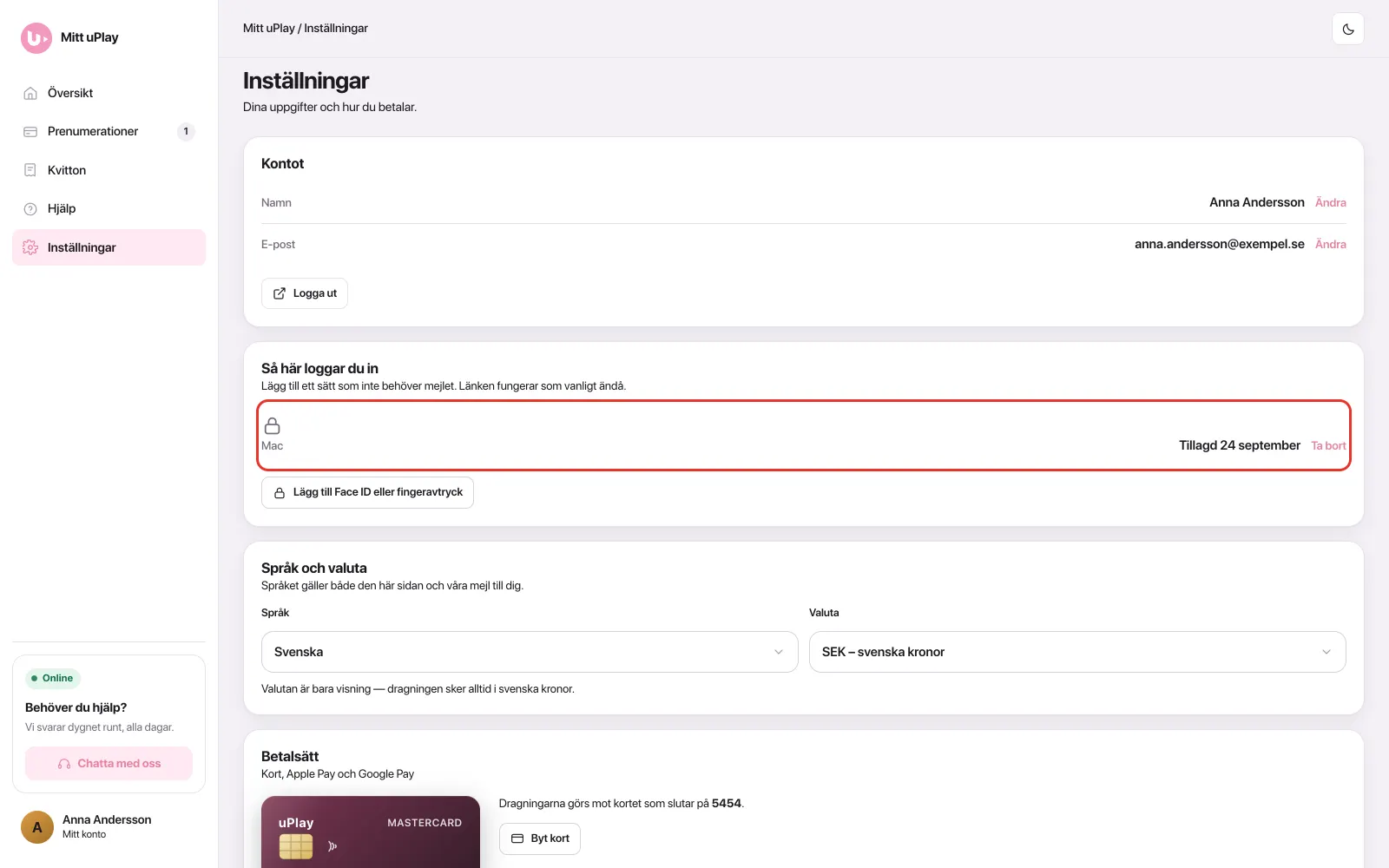
The key appears in the list with the device name and the date you added it. To disconnect it later, press Remove.
Step 4 – How you sign in next time
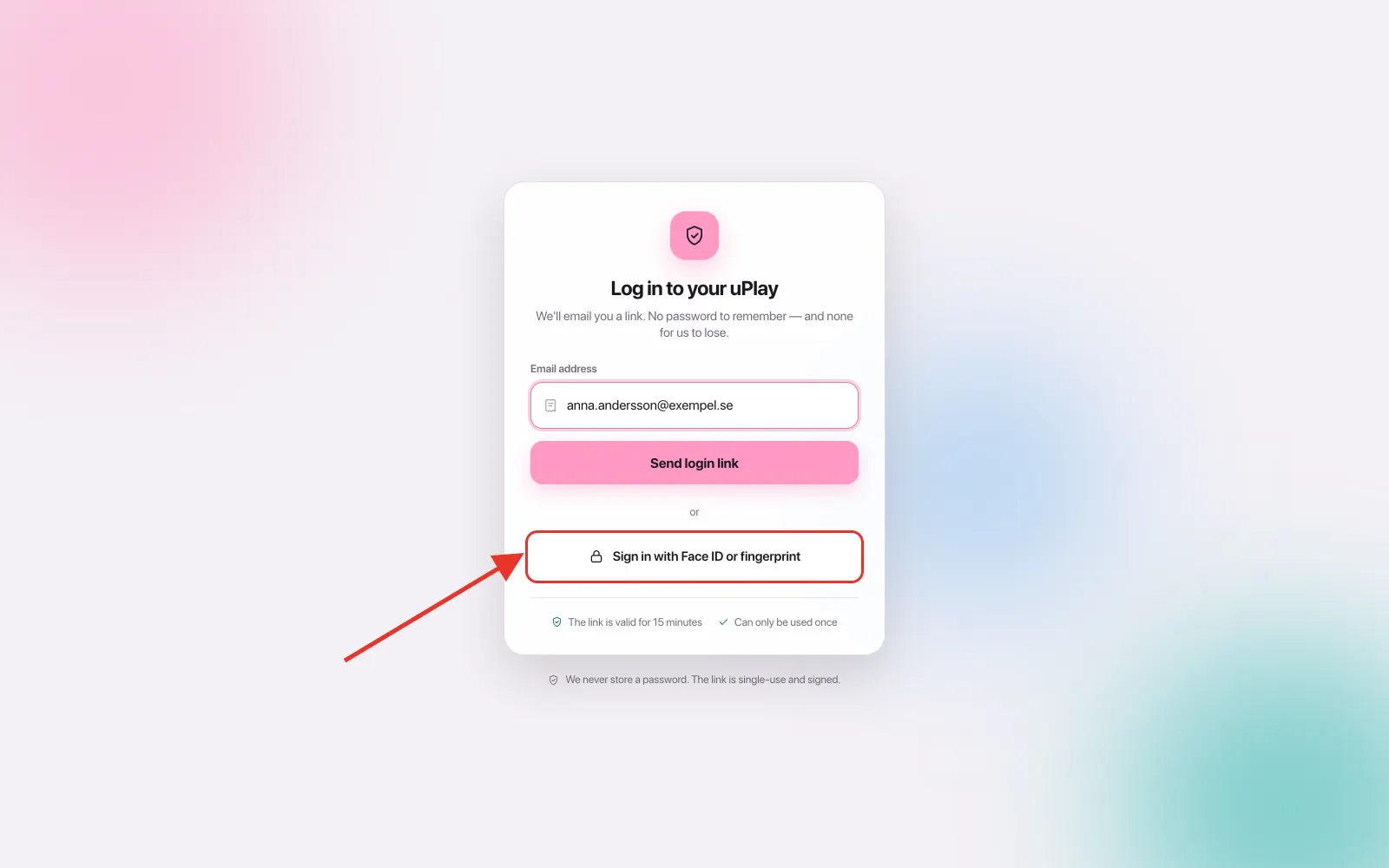
On the login page, press Sign in with Face ID or fingerprint instead of filling in your address.
Frequently asked questions
Do I have to choose? Can I have both?
You always have both. A passkey replaces nothing – the link in your email works exactly as before, and it is your way in if you lose your phone.
I added a key on my computer. Does it work on my phone?
Often yes, if the devices share the same keychain: iCloud Keychain between Apple devices, Google Password Manager between Android and Chrome. The key then syncs by itself and you need do nothing.
If they do not share a keychain, add another key on the other device. You can have as many as you like, and each one appears separately in the list.
What happens if I lose my phone?
Nothing you cannot solve. Sign in with the email link as usual, go to Settings and press Remove on the key that was on the lost device. It stops working immediately.
Why do I have to sign in again after a while?
A session lasts a few hours and then expires. This is so a forgotten session on a shared or borrowed computer does not live on for weeks. If you have a passkey, the way back in takes two seconds.
Can you see my fingerprint or my face?
No. The check happens inside your device and never leaves it. We only get a yes or a no, and a public key that is worthless anywhere other than uplay.zone.
The Face ID button does not appear on my device
Then your browser does not fully support it. Try a newer browser, or do it on your phone – and use the email link in the meantime. That always works.
I have changed my email address
Sign in with the old address, go to Settings and press Change next to Email. If you cannot get into the old address at all, message us in the chat and we will change it for you.
Does signing in work abroad?
Yes, exactly as at home. See also uPlay Abroad.
Summary
| Step | Details |
|---|---|
| Sign in | uplay.zone/account → email address → Send login link |
| The link | Valid 15 minutes, works once, one email per minute |
| Add a passkey | Sign in → Settings → Add Face ID or fingerprint |
| Next time | Sign in with Face ID or fingerprint – no email needed |
| Lost device | Sign in with the link → Settings → Remove |