
Can I change countries and content on my account after signing up?
Yes. You request the change yourself in My uPlay, and it costs nothing extra.
Common changes:
- Switching from everything to a smaller package, for example Nordics + English
- Picking your own countries instead of a ready-made package
- Adding or removing adult channels
- Switching packages because your viewing habits changed
Choose your content when you order
At checkout there is a Content row. You pick a package there before you can complete the purchase – nothing is preselected. Want everything? Choose All content. Want a shorter list? Choose for example Sweden, Nordics or Sweden + English. Adult channels are a separate switch.
We recommend a shorter list if you know what you watch: it loads faster and is easier to navigate.
Your account is created straight away with the content you chose.
How to request a change
Step 1 – Open Content under Manage
Log in at My uPlay and tap Manage on the subscription card. The Content row shows what you have today – tap it.
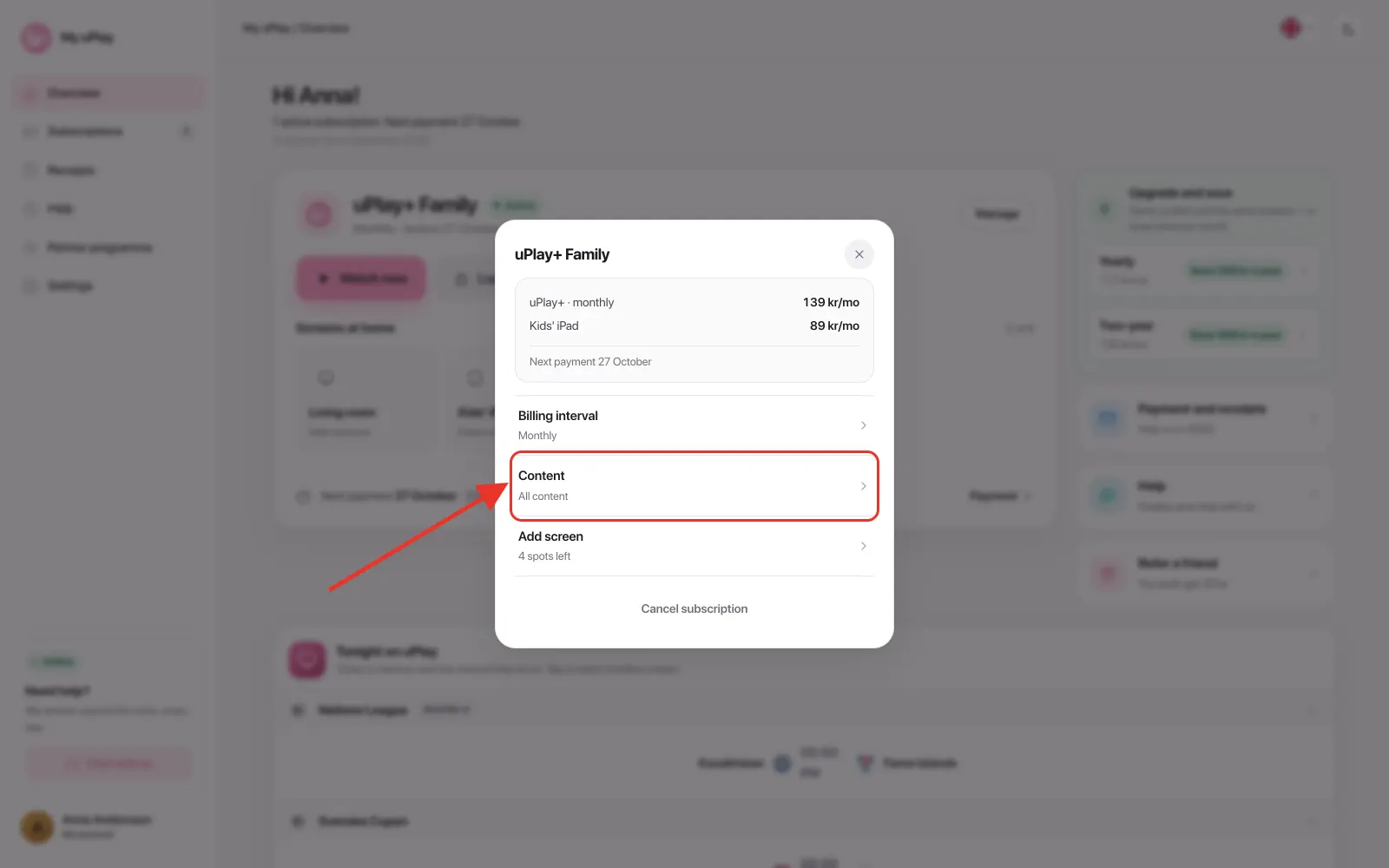
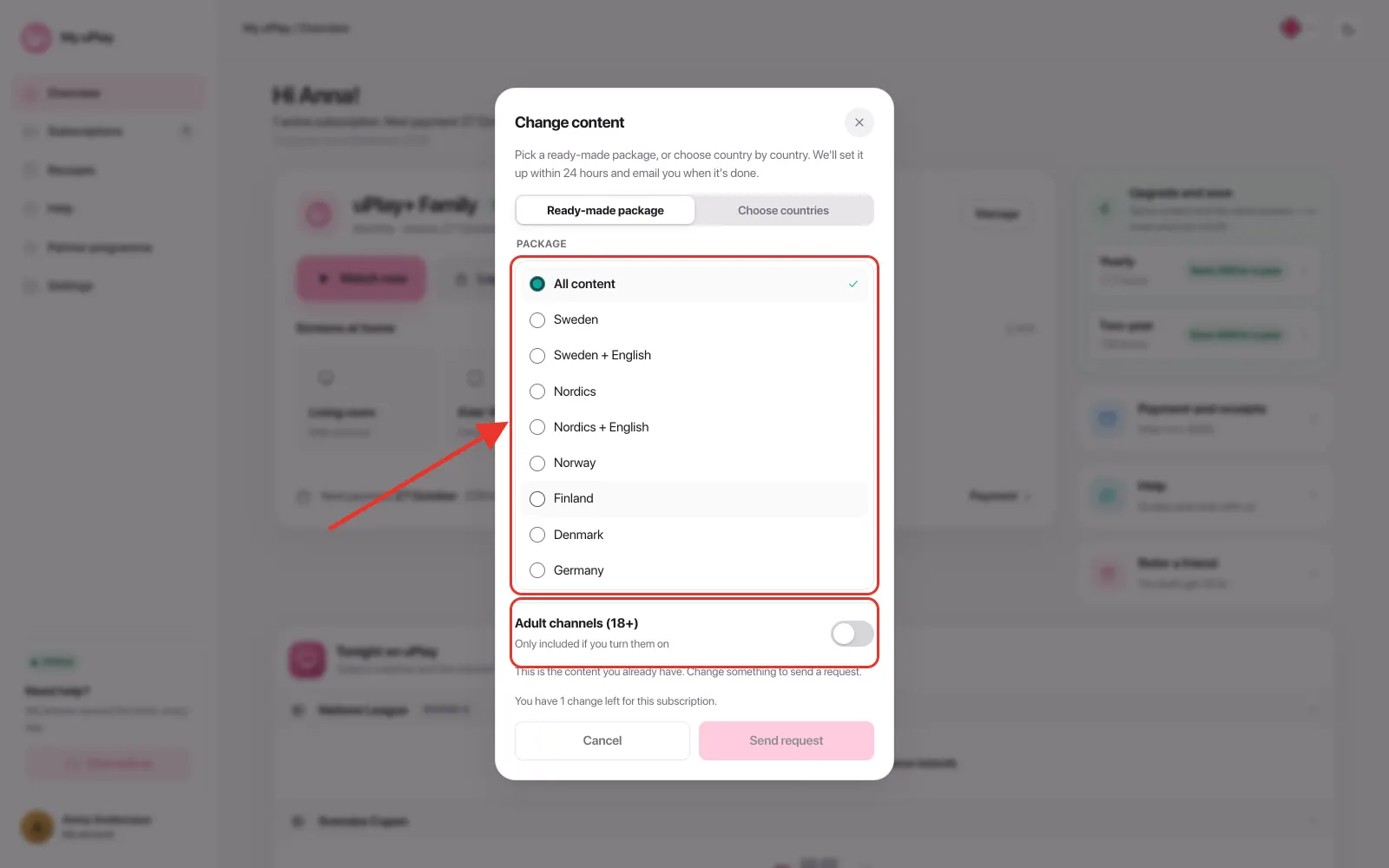
Step 2 – Pick a ready-made package, or choose country by country
The dialog has two tabs.
Ready-made package is the simple route: pick one of the packages in the list. This is also where you turn on Adult channels (18+) if you want them – they are only included if you choose them.
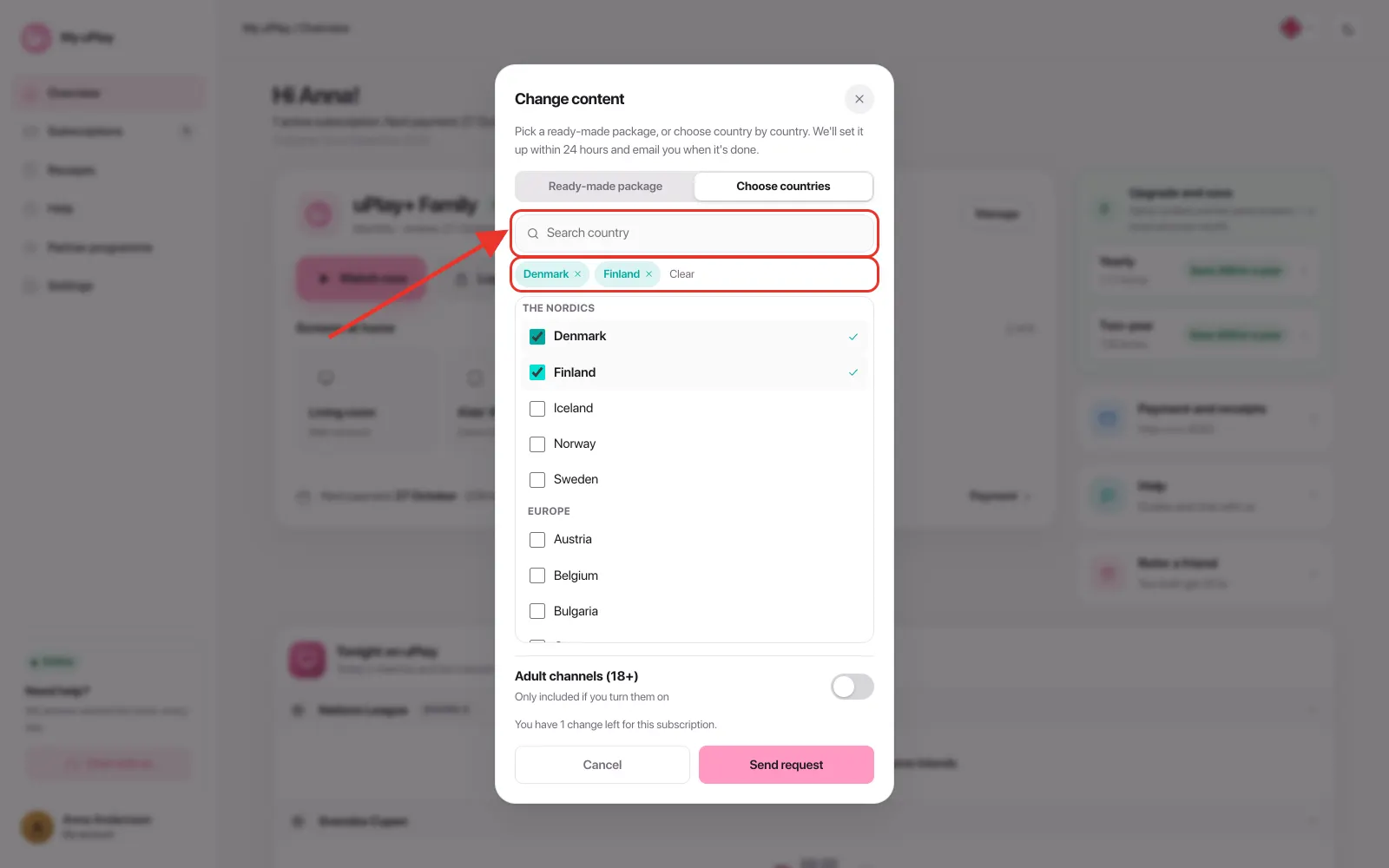
Choose countries is for building the list yourself. Search for the country, tick it, and it appears as a chip above the list. You can pick up to 25 countries – if you want more, a ready-made package is the better fit.
Step 3 – Send the request
Tap Send request. You get a confirmation right there in the dialog.
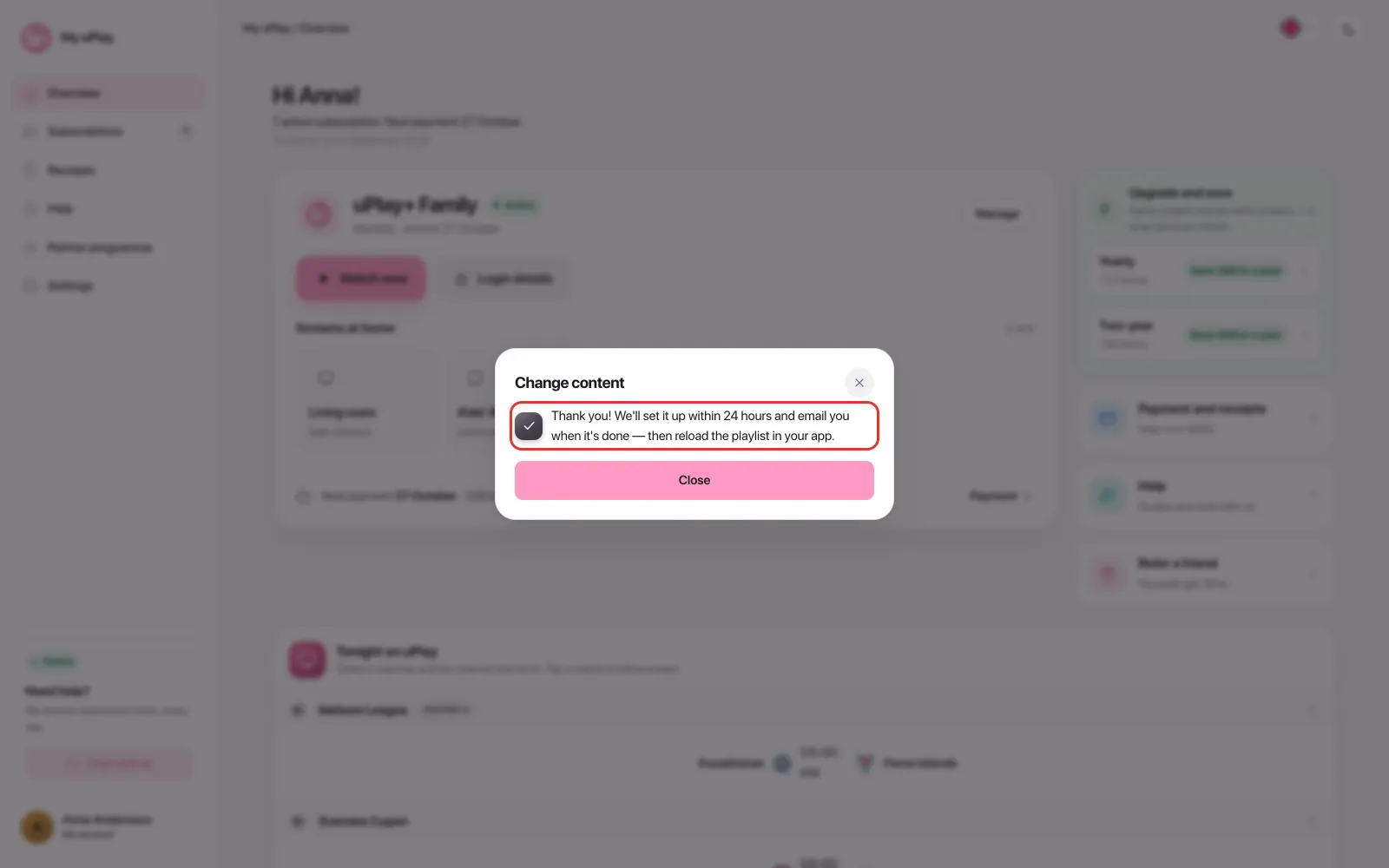
The Content row under Manage then shows In progress until the change is made, so you can see that it went through.
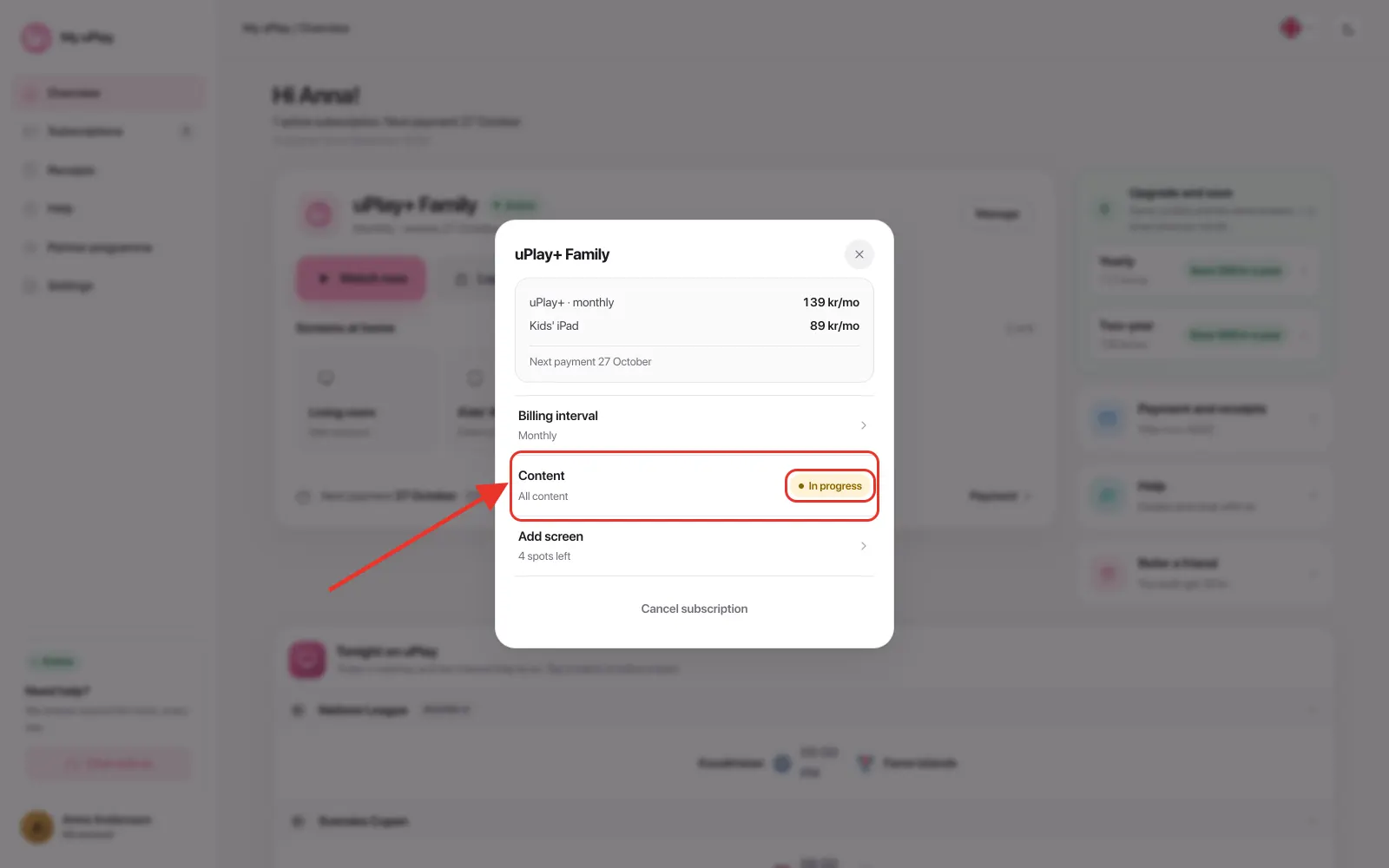
Step 4 – Refresh the playlist in your app
We set the change up within 24 hours and email you when it's done. Then you need to refresh the playlist in your IPTV app for the new content to show up:
| App | How to refresh |
|---|---|
| TiviMate | Settings → Playlists → your playlist → Update playlist |
| UHF | Reload the playlist under Settings → Playlists |
| IBO Player, SmartOne and other apps you connect with a MAC address | Restart the app |
| MYTVOnline 3 | Settings → Content Manager → Data Sync → Contents Data → Refresh |
| Other apps | Restart the app or look for "Update playlist" in the settings |
Tips
We have detailed guides for each app in the menu on the left.
When the change has been used
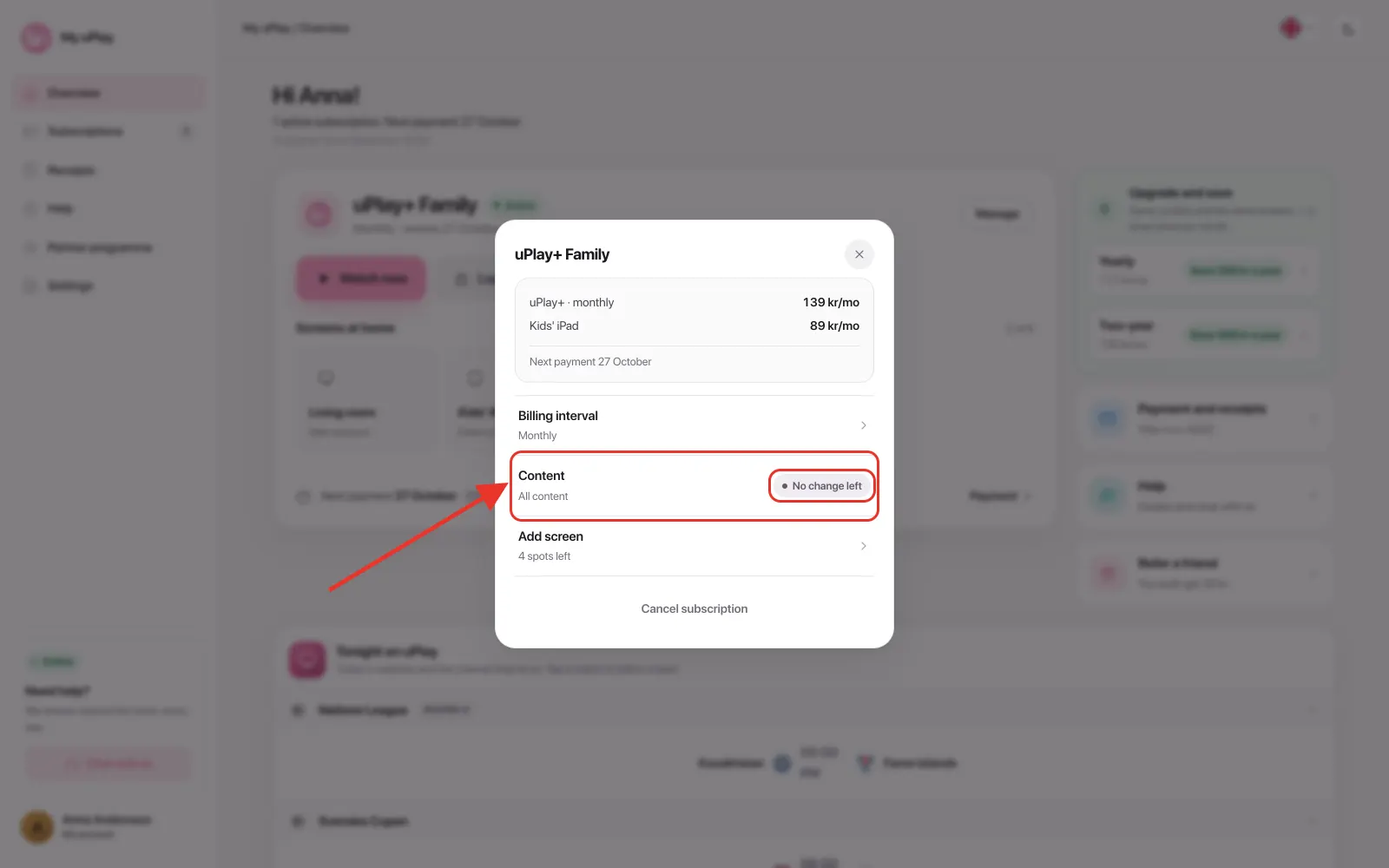
The Content row under Manage then shows No change left, and can no longer be tapped. The content you picked stays exactly as it is – it is only the option to request another change that is used up.
From there you control the content in your app, and there is no limit at all. Most IPTV apps let you hide and show both categories and individual channels, so if you want to see fewer channels than you have today, that is usually quicker than a change from us. Look in your app's settings for Categories, Hide or Favourites – the name differs between apps, and the guides in the menu show where it sits in yours.
Frequently asked questions
How many times can I change my content?
Once per subscription, on top of the choice you make at checkout.
The dialog tells you how many changes you have left, and once it has been used the Content row shows No change left.
It exists because every change is set up by hand by our technical team.
Does changing content cost extra?
No. The change fits within your existing subscription.
Do I need new login details after a change?
No. Your username, password and server address stay exactly the same – only the content changes on the server side.
Does this work for M3U links too?
Yes. Whether you use Xtream Codes or an M3U link, the content updates after the change. Reload the playlist in your app and it will show.
I have several subscriptions – does the change apply to all of them?
No. Each subscription has its own Content row and its own change, and that includes extra connections.
A new connection starts with the same content as the main subscription – it inherits the household's choice instead of asking again. But it is a subscription of its own, so it can have something different: tap the screen under Screens at home, then Change next to Content, and request the change there.
What if the new content doesn't appear?
Try this, in order:
- Check that you received the email saying the change is done
- Refresh the playlist manually in the app
- Clear the app's cache in your device settings
- Restart the app completely
Summary
| Step | Details |
|---|---|
| 1. Open Content | My uPlay → Manage → the Content row |
| 2. Choose | A ready-made package, or up to 25 countries of your own |
| 3. Send | Done within 24 hours – you get an email |
| 4. Refresh the playlist | Refresh manually in the app or restart it |