
How do I watch IPTV on Android TV, Google TV or Chromecast?
Install the TiviMate IPTV Player app from Google Play and add your account with Xtream Codes. It works on every device with Android TV or Google TV, and you are up and running in a few minutes.
Which devices does this apply to?
| Device | Works with TiviMate |
|---|---|
| Chromecast with Google TV and Google TV Streamer | Yes |
| Nvidia Shield | Yes |
| TVs from Philips, Sony and TCL with Google TV | Yes |
| Other boxes and sticks with Android TV or Google TV | Yes |
| Older Chromecast without a remote | No, see below |
| Fire TV Stick | Yes, but the app is installed in a different way. See IPTV on Fire TV Stick |
Older Chromecast without Google TV
A Chromecast without a remote and a home screen of its own can't install apps. It only shows what you send from your phone, and that works poorly with IPTV. Use a device where the app is installed directly, such as a Chromecast with Google TV.
What you need
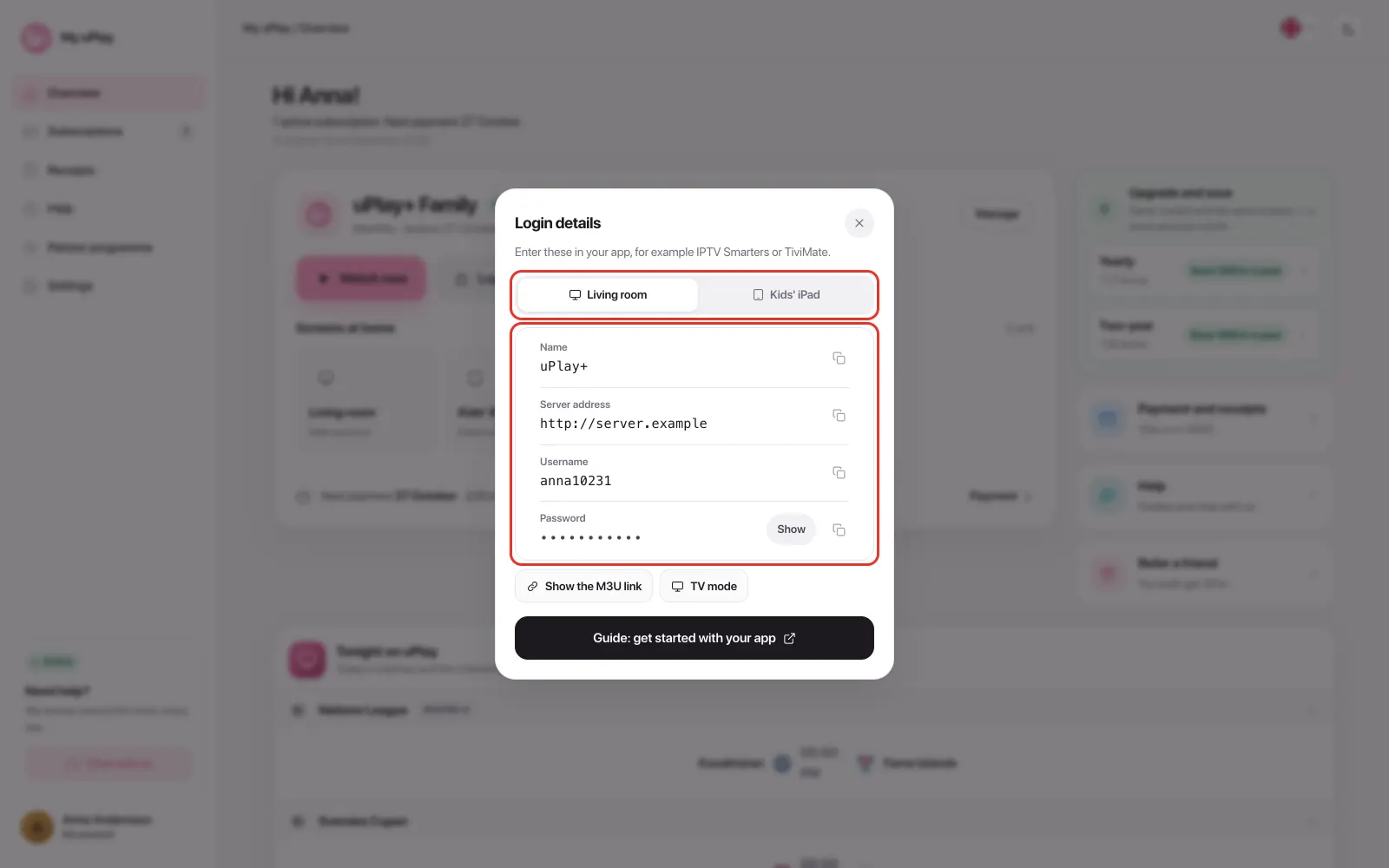
An IPTV subscription with Xtream Codes, meaning a server address, a username and a password. At uPlay you find them under Login details on My uPlay.
Step 1: Install TiviMate
- Open Google Play on the device.
- Search for TiviMate IPTV Player and install the app.
Step 2: Add your account
- Open TiviMate and select Add playlist.
- Select Xtream Codes, not M3U.
- Fill in the server address, username and password. Enter the server address exactly as it is written, starting with http://.
- Continue with Next. Channels, programme guide, movies and series load.
Step 3: Check the stream format
Go to Settings → Playlists → select the playlist → Xtream Codes parameters and make sure the format is MPEG-TS. If it says HLS, no live channels start at uPlay, while movies and series work.
Everything about settings, favourites, the programme guide and parental controls is in the TiviMate guide.
Frequently asked questions
Does TiviMate cost anything?
TiviMate has a free version and a paid Premium. Movies and series require Premium, and so do recording, several playlists and catch-up. You buy Premium in the app through Google Play, or at tivimate.com. The fee goes to TiviMate and has nothing to do with your IPTV subscription.
Are there other apps for Android TV?
Yes. XCIPTV is fast and easy to get started with, and Opus IPTV suits simpler boxes. uPlay works in most apps that take Xtream Codes. See Other IPTV apps.
I have a Formuler box
Formuler has its own app, MYTVOnline. Follow the Formuler guide instead.
Which app should I use on my Android phone?
TiviMate is made for TVs. On phones and tablets we recommend MYTVOnline+ or Opus IPTV. See Best IPTV app for Android phones and tablets.
The live channels won't start, but movies and series work
Change the stream format to MPEG-TS as in step 3 and press Update playlist.
Can I send the picture from my phone to the TV instead?
That rarely works well with IPTV. Install the app directly on the device connected to the TV for the best result.
Summary
- Install TiviMate IPTV Player from Google Play
- Add your account with Xtream Codes and the stream format MPEG-TS
- An older Chromecast without Google TV can't install apps
- Movies and series require TiviMate Premium, which is the app's own fee