
How do I install IPTV on a Fire TV Stick?
You install the TiviMate app using the Downloader app, and then add your account with Xtream Codes. TiviMate isn't in Amazon's app store, so it is fetched with a code instead. Allow ten minutes.
The guide applies to the Fire TV Stick, the Fire TV Cube and TVs with Fire TV built in, as long as the device runs Fire OS.
Newer Fire TV models with Vega OS
The Fire TV Stick 4K Select and newer Fire TV devices running Vega OS can't install apps from outside Amazon's store, so TiviMate can't be installed on them. You can see which system your device runs under Settings → My Fire TV → About. If that's the case, use a different device, such as a Google TV box.
What you need
- A Fire TV device with Fire OS, connected to the internet.
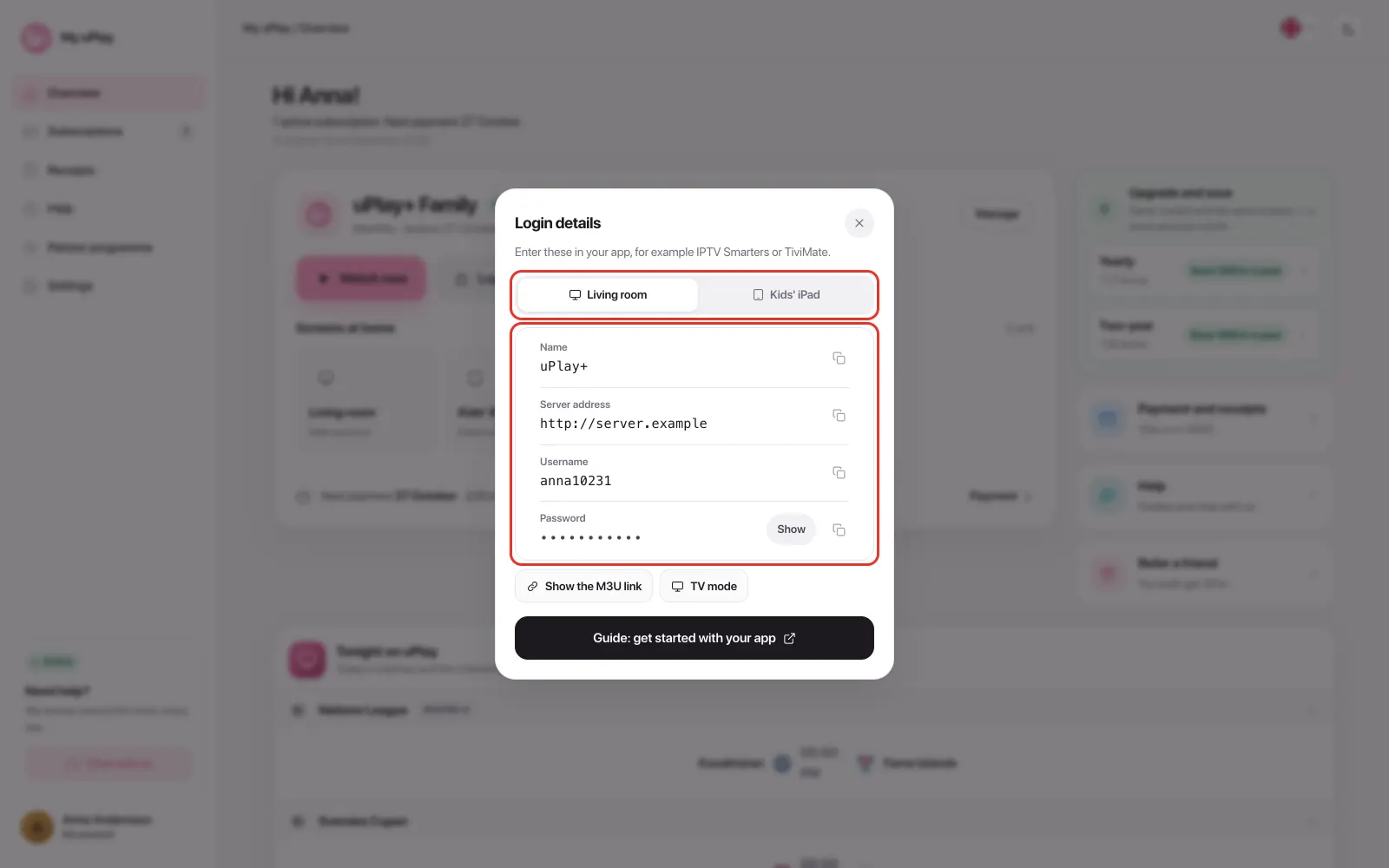
- An IPTV subscription with Xtream Codes, meaning a server address, a username and a password. At uPlay you find them under Login details on My uPlay.
Step 1: Install Downloader
- Go to Find (the magnifying glass) on the home screen and search for Downloader.
- Select the Downloader app and press Get or Download.
Step 2: Allow Downloader to install apps
- Open Settings → My Fire TV → Developer Options.
- Select Install unknown apps and turn it on for Downloader.
Can't see Developer Options?
Go to Settings → My Fire TV → About, highlight the device name at the top and press the centre button on the remote seven times. Go back one step, and Developer Options is in the list.
Step 3: Get TiviMate
- Open Downloader.
- Enter the code 272483 in the field (or the address tivimate.com/apk) and press Go. That's TiviMate's official installation file.
- Press Install when the file has downloaded, and then Open.
Step 4: Add your account
- Select Add playlist in TiviMate.
- Select Xtream Codes, not M3U.
- Fill in the server address, username and password. Enter the server address exactly as it is written, starting with http://.
- Continue with Next. Channels, programme guide, movies and series load.
The stream format must be MPEG-TS
Check under Settings → Playlists → select the playlist → Xtream Codes parameters that the format is MPEG-TS. If it says HLS, no live channels start at uPlay, while movies and series work.
Everything about settings, favourites, the programme guide and parental controls is in the TiviMate guide.
Frequently asked questions
Is TiviMate in Amazon's app store?
No. That is why it is installed with Downloader, which is in the store. The code 272483 fetches TiviMate's own installation file.
Does TiviMate cost anything?
TiviMate has a free version and a paid Premium. Movies and series require Premium, and so do recording, several playlists and catch-up. On Fire TV you buy Premium through the TiviMate Companion app on an Android phone, or at tivimate.com. The fee goes to TiviMate and has nothing to do with your IPTV subscription.
The live channels won't start, but movies and series work
Change the stream format to MPEG-TS under Settings → Playlists → select the playlist → Xtream Codes parameters, and press Update playlist.
The picture buffers or stutters
A Fire TV Stick often sits behind the TV, where the wifi signal is weakest. Try the extension cable that came with it, move the router closer, or use a wired network adapter. More causes and fixes are in IPTV buffering or stuttering.
I don't have a Fire TV Stick yet. Which device should I choose?
If you want TiviMate without detours, a device with Google TV is the easiest, since the app is in Google Play. See IPTV on Android TV, Google TV and Chromecast. If most of your devices are Apple, an Apple TV is a good fit.
Can I use another app than TiviMate?
Yes. uPlay works in most apps that take Xtream Codes. See Other IPTV apps.
Summary
- Install Downloader from Amazon's store and allow it under Developer Options
- Get TiviMate with the code 272483
- Add your account with Xtream Codes and the stream format MPEG-TS
- Devices with Vega OS can't install TiviMate